
PNG to PDF Converter
Convert images to PDF. Free, with no account needed.
PDF workspace
On-device- Choose images
- Arrange & edit
- Download PDF
Choose images for your PDF
or drag and drop your images here
PNGJPGJPEGWebP
Multiple images supported · Up to 50 MB eachAll images become pages in one PDF, in the order below.
PDF settingsImage-sized pages · No margins · High quality
Fill can crop image edges when the image and printable page have different shapes. Preview pages to check the result. Your original images stay unchanged.
Your images stay on your device. No uploads.
Need a hand? Follow the step-by-step guide
Your images. Your page layout.

Every page in its place
Keep the images you need, in the right order.

Make the image fit
Crop, rotate or flip before converting.

Ready for screen or print
Set page size, margins and image quality.
How to convert PNG to PDF
Choose images
Choose PNG, JPG, JPEG or WebP files, or drag them into the converter. You can mix formats.
Arrange and preview
Reorder or edit your images, choose PDF settings and preview the pages.
Create and download
Create your PDF, then download it. Each image becomes a page.
Your files stay on your device.
Your selected images are processed locally in your browser and are not uploaded to PixToPaper servers.
Clear your images or close the tab to end the session. Downloaded PDFs stay wherever you save them.
Read our privacy noticeSupported image formats
Mix PNG screenshots, JPG/JPEG photos and WebP images. JPG and JPEG are the same format.
Transparent areas become white. Animated WebP is converted to a still image. Very large images may be downscaled to keep conversion manageable.
PNG or JPG: which works better in a PDF?Useful for everyday paperwork.
- Screenshots in one shareable document.
- Receipts for your records.
- Scanned notes and worksheets.
- Images ready for A4 or US Letter printing.
For sensitive documents, use a device and browser you trust. Always check the downloaded PDF before sharing or printing.
Questions before you convert?
Is PixToPaper free to use?
Yes. You can create and download PDFs without an account, subscription or watermark.
Are my images uploaded anywhere?
No. Selected images are decoded, edited and converted locally by your browser, not uploaded to PixToPaper servers. Loading the website still makes ordinary network requests for site files.
Can I combine PNG and JPG in the same PDF?
Yes. Select any combination of supported PNG, JPG, JPEG and WebP images. Arrange them in order; each becomes one PDF page.
Can I create a separate PDF for each image?
Yes. Single PDF is the default and combines all images into one document. Choose Individual PDFs for one PDF per image, then preview and download each file from its image card. No ZIP is needed. Downloads use the image name with a -pixtopaper suffix; the combined PDF uses the first image’s name.
Which page size should I choose?
Auto matches each edited image’s proportions. US Letter is common in the United States, while A4 is common internationally. Choose the paper you’ll actually print on. Compare A4 and US Letter page sizes.
Does conversion change the image quality?
High and Compact use JPEG compression. Lossless uses PNG encoding without JPEG compression, but very large images are downscaled for memory safety. Cropping, resizing and rotation can alter the output. The preview shows layout; check the downloaded PDF for final quality.
Can I use this on my phone?
Yes, in a modern mobile browser. Select images from your device, move pages earlier or later and download your PDF. Smaller batches and Compact quality are helpful on memory-constrained devices.
What are the conversion limits?
Each file can be up to 50 MB and 40 megapixels. A session supports up to 100 images and 250 MB of input files. Your device’s available memory may require a smaller batch. Files over 20 MB receive a warning.
A good PDF starts with a good image.
Practical guides to formats, page sizes and getting a cleaner result.
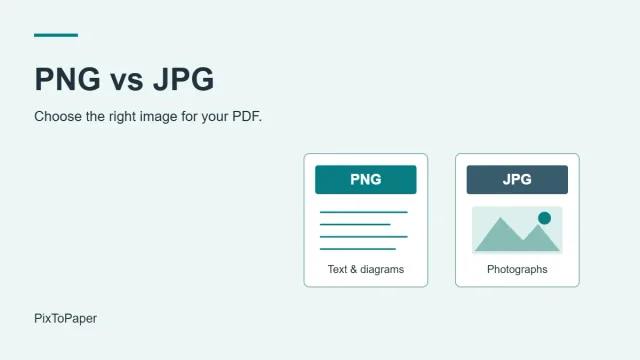
PNG vs JPG for PDF: which should you use?
Choose the right format for screenshots, text and photos — and understand what compression changes.
Read the format guide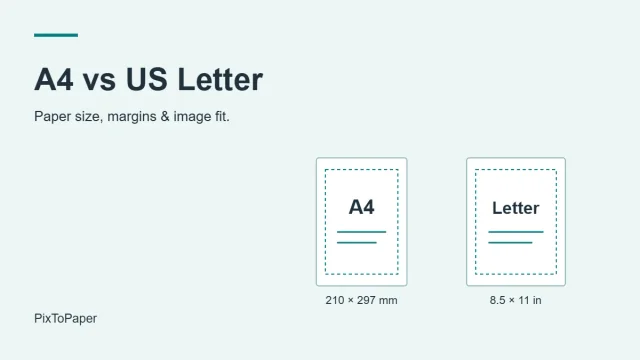
A4 vs US Letter: choose the right PDF size
Dimensions, print margins and image resolution explained with concrete examples.
Read the page-size guide